Click the Icon for Thunderbird Mail to open program. Click “Create new account”
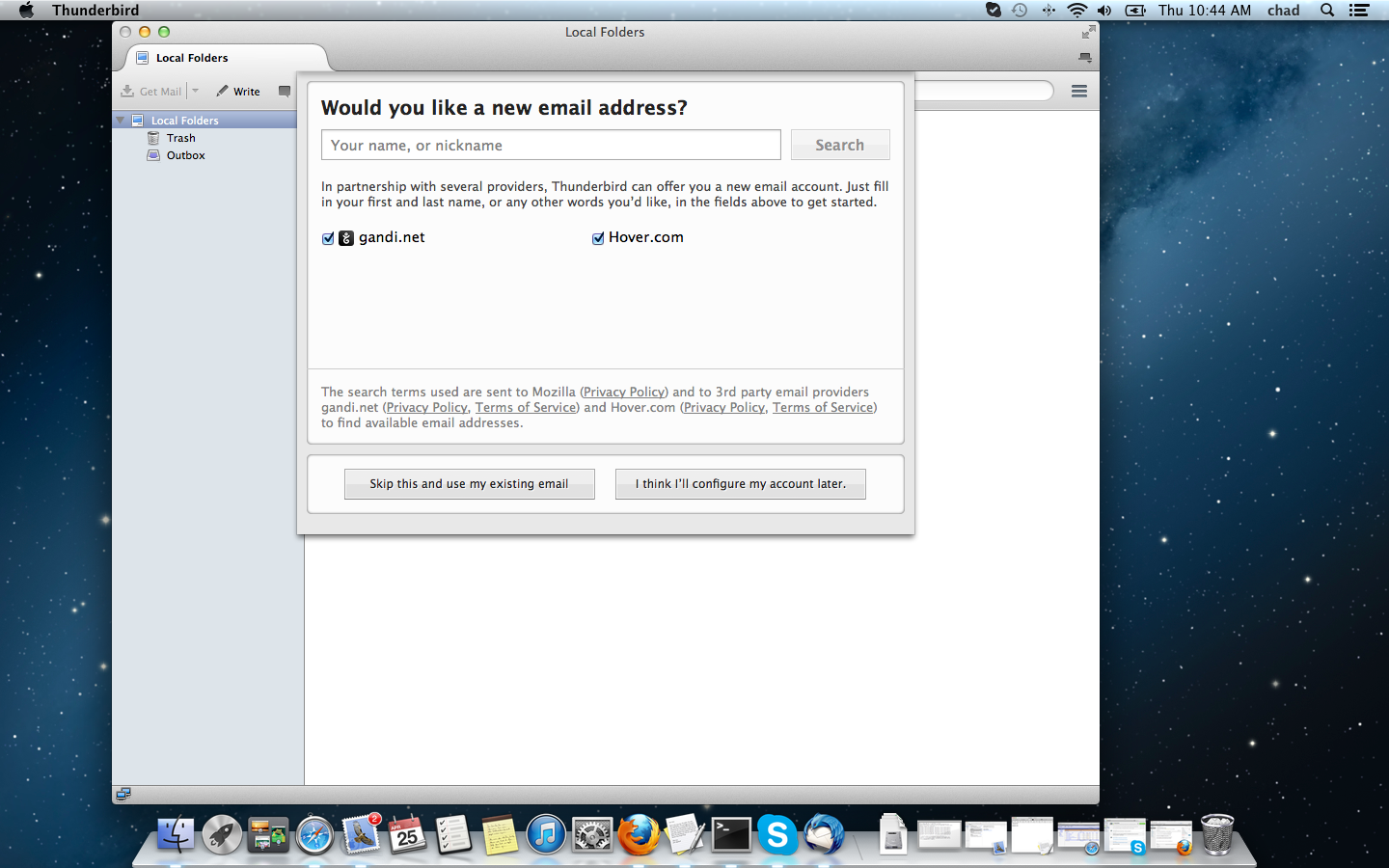
In the bottom left of this screen click “Skip this and use my existing email”
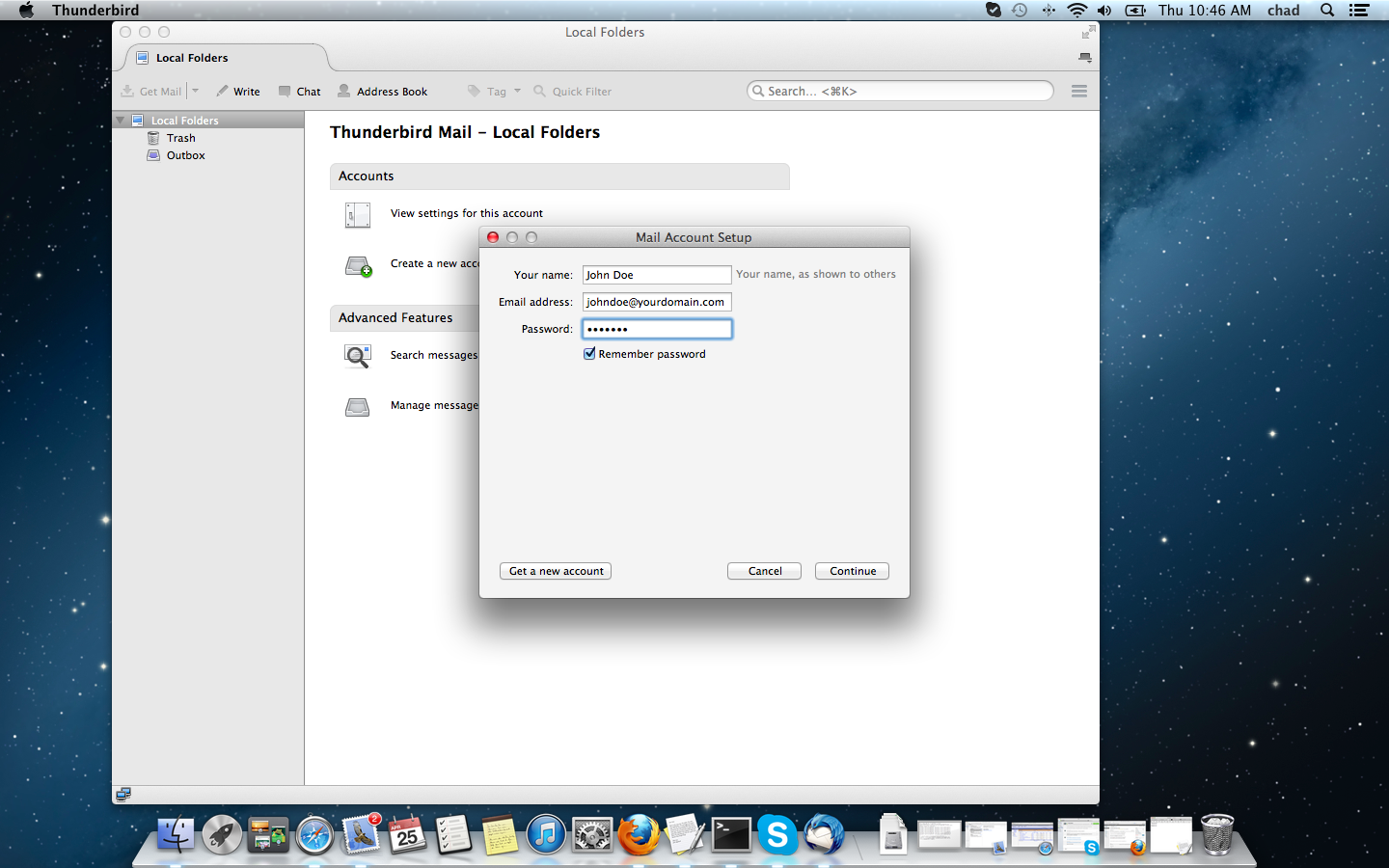
Mail Account Setup. Follow self explanatory instructions carefully. See below:
NOTE: BE SURE TO CLICK CONTINUE, NOT “GET NEW ACCOUNT”
This is where you add your incoming and outgoing mail server names and settings.
Replace the “yourdomain.com” with your actual domain name. Click “Re-test”
After clicking “Re-test” the settings will automatically update and look like this:
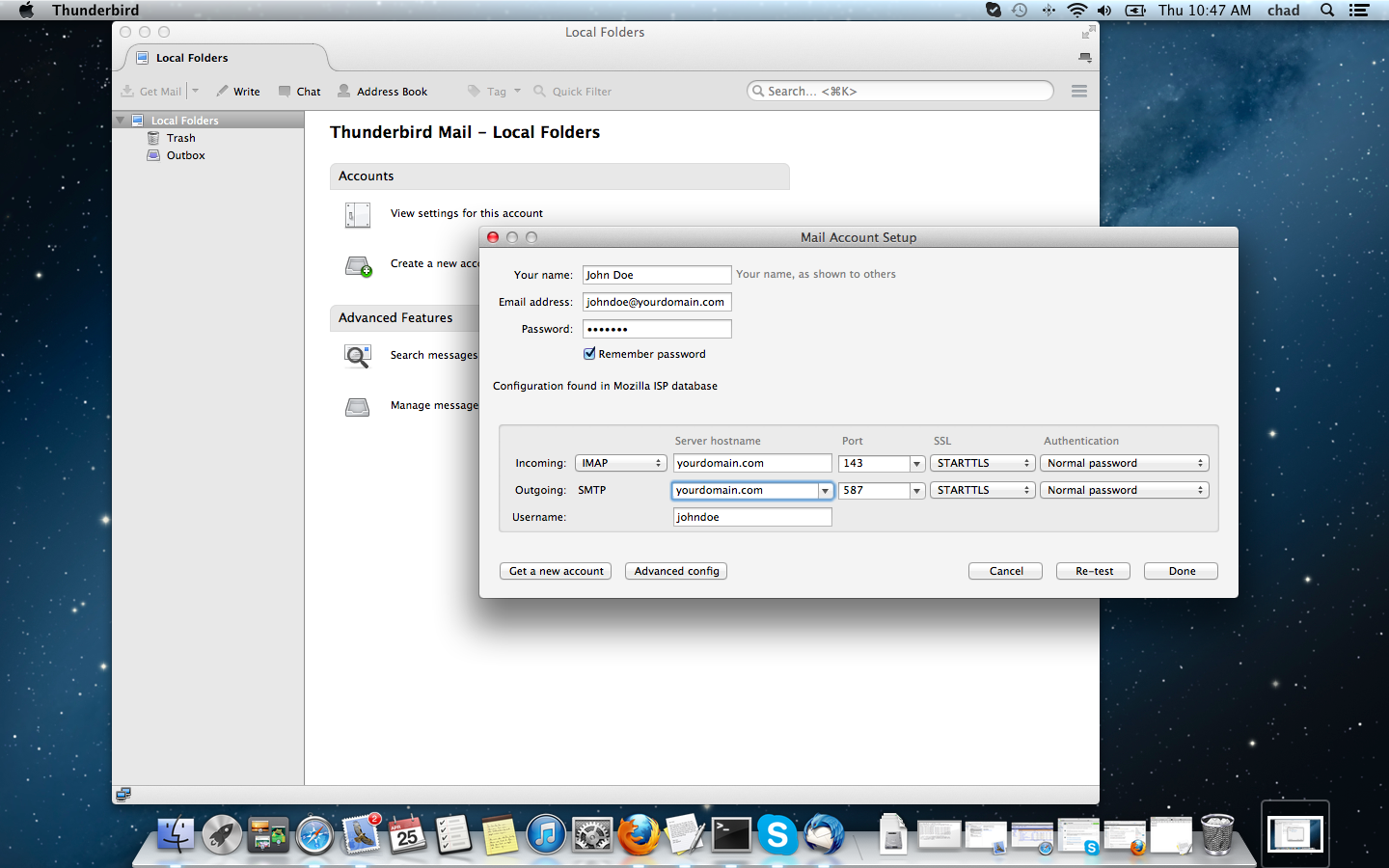
Click “Done“Thunderbird is now ready for use! Thank you for choosing M3Server.com!